Toyota Camry CarPlay Not Working (Fix It Now)
Toyota Camry CarPlay can stop working after iPhone updates or multimedia software glitches. Older Camry models often struggle with weak USB connections or outdated infotainment software, while newer 2023 to 2026 systems mostly face wireless connection problems.
This guide covers every common reason CarPlay stops working on a Toyota Camry and gives you clear steps to get it working again, starting with the fastest solutions first.
Why Is Toyota Camry CarPlay Not Working?
The most common causes include outdated iPhone software, a faulty USB cable, frozen infotainment software, or CarPlay permissions that were accidentally disabled during setup. If you are unsure whether your Camry supports carplay chack, Do Toyota Camrys Have Apple CarPlay? Some early CarPlay-equipped Camrys are more prone to these issues because their multimedia software receives fewer updates than Toyota’s newer systems.
Why Does Apple CarPlay Suddenly Stop Connecting?
Most sudden disconnects occur after an iPhone update, a low-quality cable, or a temporary Toyota multimedia freeze.
A quick restart of both the iPhone and the Camry system often fixes the connection immediately.
How Do You Fix Toyota Camry CarPlay Not Working?
Most Toyota Camry CarPlay issues can be solved without tools or dealership repairs.
Usually helps:
- Frozen CarPlay screen
- Black display issue
- Endless reconnecting
- Missing CarPlay icon
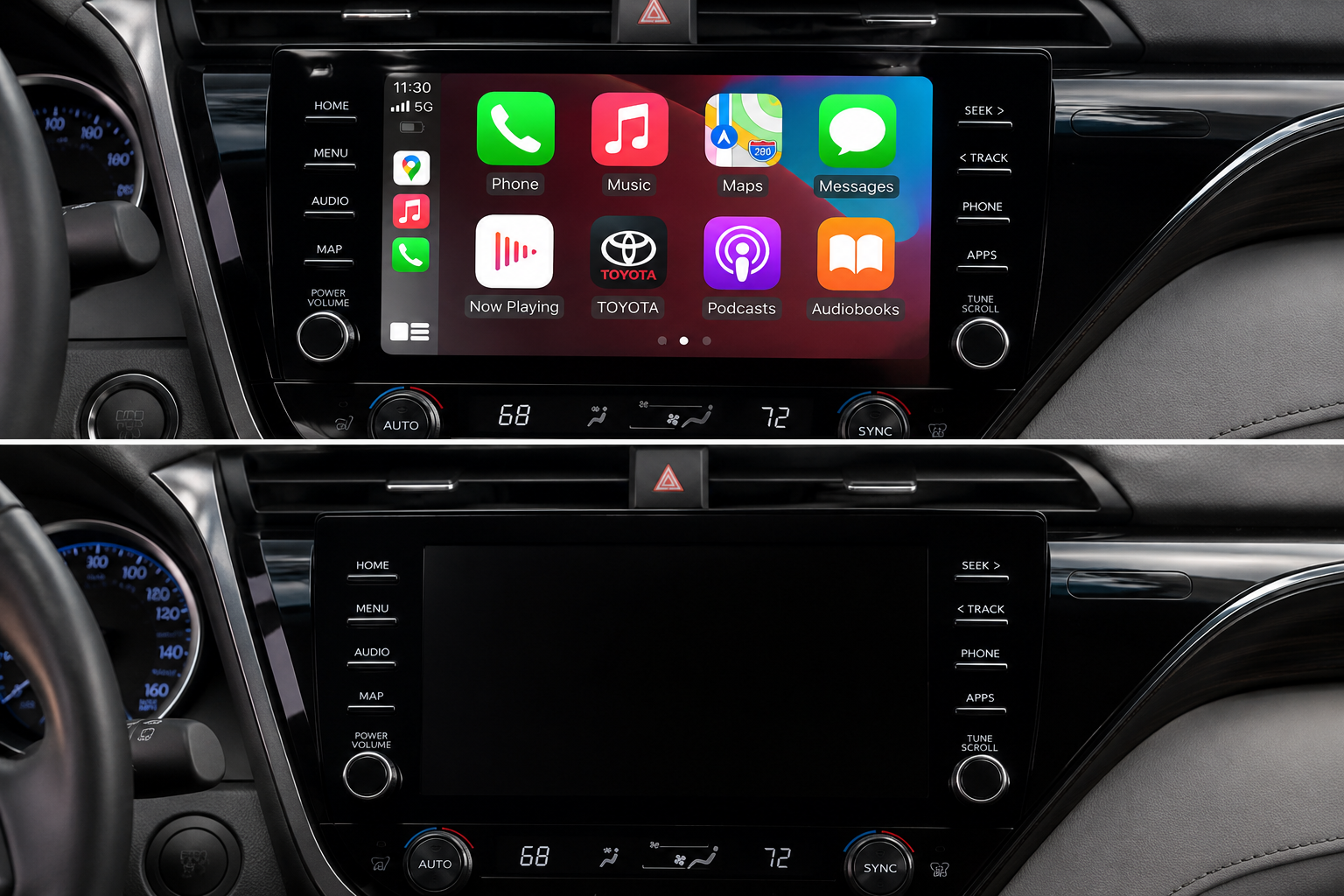
How Do You Restart the Toyota Multimedia System?
- Keep the car running
- Press and hold the Power or Volume button for 10 seconds
- The screen will go black, then restart
- Once the screen comes back, reconnect your iPhone
This refreshes the multimedia software without deleting saved settings.
Why Is Toyota Camry CarPlay Not Detecting the iPhone?
When the Camry cannot detect the iPhone, the issue is usually related to the USB cable, disabled CarPlay permissions, or a blocked connection request on the phone. Dirt inside the charging port can also interrupt communication.
| Problem | Real-World Result |
| Loose cable | Phone charges but CarPlay fails |
| Dirty charging port | Random disconnects |
| CarPlay disabled | Device not detected |
| Locked iPhone | No connection request appears |
Is the USB Cable Causing the Problem?
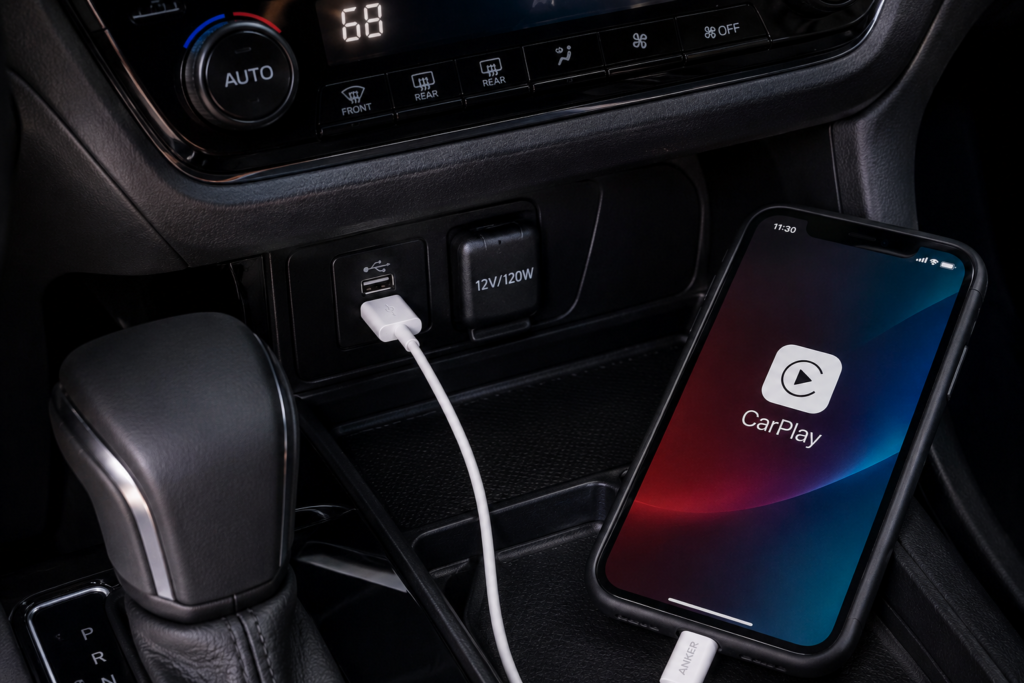
Yes. A common clue is when the iPhone charges normally, but CarPlay never appears on the screen. In many cases, the cable can deliver power but cannot transfer data properly. Some cables only support charging and cannot transfer data properly.
Does Toyota Camry Support Wireless CarPlay?
Newer Toyota Camry models support wireless Apple CarPlay depending on trim level and multimedia generation. Most 2025 to 2026 models offer more stable wireless performance compared to earlier systems.
| Camry Model Year | Wireless CarPlay Support |
| 2018 to 2019 | No |
| 2020 to 2022 | Mostly wired |
| 2023 to 2026 | Wireless on many trims |
Why Does Wireless CarPlay Keep Disconnecting?
Wireless CarPlay depends on both Bluetooth and Wi-Fi signals working together. If either signal becomes unstable, the connection may drop while driving.
Common causes:
- Weak phone signal
- Battery saver mode
- Overheating iPhone
- Too many nearby wireless devices
Toyota Camry CarPlay Problems by Model Year
Not every Toyota Camry generation behaves the same with CarPlay. Older systems usually react more slowly and struggle more after iPhone updates, while newer multimedia systems reconnect much faster.
Do 2018 to 2019 Camry Models Have More Issues?
Yes. Early CarPlay-supported Camry systems are more likely to freeze, fail to reconnect, or reject newer iPhone updates. Previous-generation multimedia software often reacts more slowly than Toyota’s latest infotainment systems.
How Do You Reset CarPlay in a Toyota Camry?
Resetting CarPlay removes saved phone conflicts and refreshes the Toyota multimedia connection. This is usually recommended when reconnecting attempts fail repeatedly.
| Reset Type | What It Removes |
| Delete phone only | Saved iPhone connection |
| Multimedia reset | All phones and settings |
| Factory reset | Full infotainment cleanup |
Read Guide: How to Reset Maintenance Light on Toyota Camry?
When Should You Perform a Full Reset?
A full reset helps when:
- CarPlay never reconnects
- Multiple phones conflict
- Screen freezes often
- Audio stops working randomly
Most owners only need a full reset after repeated failed pairing attempts.
Why Does CarPlay Connect but No Audio Works?
Sometimes Apple CarPlay connects normally, but music or navigation sound does not play through the speakers. This usually happens because the wrong audio source is selected or Bluetooth conflicts with CarPlay audio routing.
Older 2018 to 2020 Camrys show this problem more often after iOS updates.
Can Bluetooth Conflict With CarPlay?
Yes. In some Camrys, Bluetooth audio and CarPlay try to control media playback at the same time. This can mute music or switch audio sources unexpectedly.
Disconnecting Bluetooth and using only CarPlay often fixes the issue.
Why Does Toyota Camry CarPlay Keep Disconnecting?
Repeated disconnects usually come from battery optimization settings, unstable wireless signals, overheating phones, or loose USB cables. In real-world use, the vehicle is often blamed first even though the root cause may come from the phone, cable, or wireless connection.
Can Battery Saver Mode Interrupt CarPlay?
Yes. Low Power Mode on iPhone can limit background functions and weaken CarPlay stability. Some users notice disconnects begin immediately after enabling battery-saving features.
Turning off Low Power Mode often improves connection reliability.
How Do You Enable CarPlay in Toyota Camry?
CarPlay may stay disabled inside Toyota multimedia settings even after connecting the iPhone correctly.
- Open Settings on your iPhone
- Tap General → CarPlay
- Select your Camry from the list
- Go to Settings → Siri & Search and enable Siri
Where Is the CarPlay Setting Located?
On most Camry models, open: Setup → Connectivity → Apple CarPlay
Some newer 2025 to 2026 systems place CarPlay settings inside the Phone Connections menu instead.
Common Toyota Camry CarPlay Mistakes
Many CarPlay problems happen because of setup mistakes instead of hardware failure. Small settings inside the iPhone or Toyota multimedia system are often overlooked during pairing.
This can leave conflicting connection records inside the system. Drivers also forget that older saved devices can interfere with newer connections.
Can Multiple Saved Phones Cause Conflicts?
Yes. Toyota systems may struggle when several old iPhones remain stored in memory. The system can repeatedly try reconnecting to the wrong device while ignoring the active phone.
Deleting unused devices usually improves connection speed and stability quickly.
FAQs
Why is my Toyota Camry CarPlay screen black but audio still works?
This usually happens because the multimedia system freezes while the audio connection stays active in the background. Hold the power button for 10 seconds to restart the screen, then reconnect your iPhone.
Can I use wireless Apple CarPlay in a 2025 Toyota Camry?
Yes. Most 2025 Toyota Camry trims support wireless Apple CarPlay with automatic iPhone connection.
Why does my Toyota Camry CarPlay disconnect after a few minutes?
Battery saver mode, overheating iPhones, or loose USB cables are the most common causes. Turn off Low Power Mode under Settings → Battery and try a different cable.
Does resetting Toyota multimedia delete saved CarPlay settings?
Yes. A full multimedia reset removes saved iPhones, Bluetooth devices, and previous CarPlay connections.
Is Toyota Camry CarPlay available on every Camry model?
No. Apple CarPlay was introduced later, so many older Camry models before 2019 do not support it from the factory.
Conclusion
Toyota Camry CarPlay problems usually come from software conflicts, weak cables, saved device issues, or blocked permissions instead of major hardware failure. In many cases, the fix is surprisingly simple. A multimedia restart, updated iPhone software, or a fresh CarPlay setup often restores normal operation within minutes.