How to Connect Bluetooth to a Toyota Camry? (Start Pairing Now)
Connecting Bluetooth to a Toyota Camry usually takes only a few minutes. Most Camry models from 2007 to 2026 support hands-free calling and wireless audio, but the menu layout changes depending on the infotainment system generation.
Many first-time owners get confused because older Camrys use physical buttons, while newer models use touchscreen-based Toyota Multimedia systems.
This guide explains how to connect Bluetooth to Toyota Camry models step by step, common pairing problems, why connections fail, and how to fix them without wasting time at the dealership.
Steps to Pair a Phone With a Toyota Camry Bluetooth
Most Toyota Camry models follow a similar pairing process, even though the screen design has changed over the years.
Typical steps include:
- Open Setup or Menu
- Select Bluetooth settings
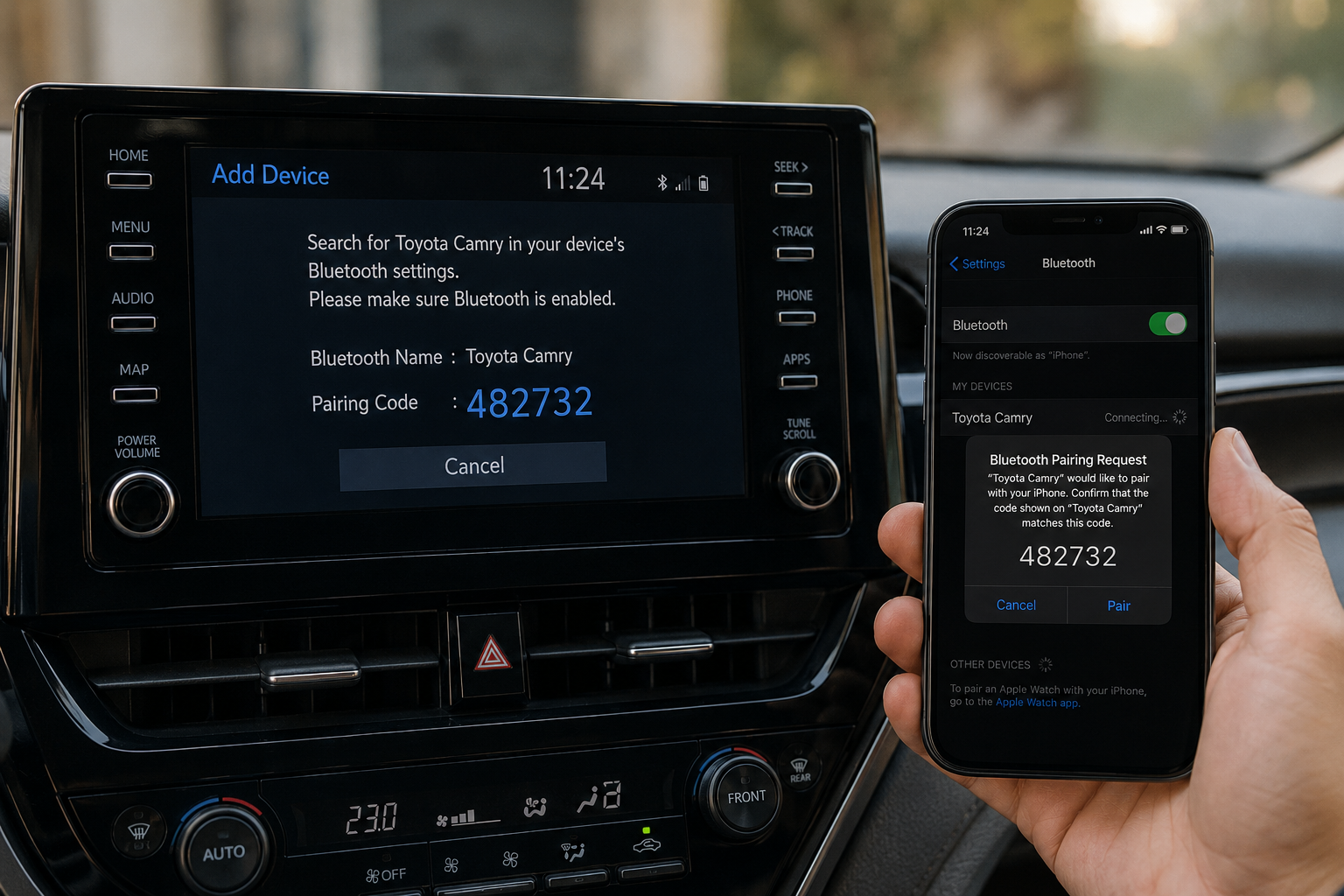
- Tap Add Device
- Choose the Camry on your phone
- Confirm the pairing code
- Allow contacts and media access
Some older 2007 to 2011 Camrys may take longer to detect newer smartphones during pairing.
Before Connecting Bluetooth in a Toyota Camry
Before pairing your phone, make sure Bluetooth is enabled and older unused devices are removed. Toyota systems sometimes struggle when too many devices are saved in memory.
If your Camry is used or recently purchased, clearing all previously paired devices is the first step before adding your phone.
Delete Old Paired Devices if Needed
Toyota systems usually store between 5 and 7 paired devices, depending on the model year.
If pairing fails:
- Remove unused phones
- Restart your smartphone
- Turn the car off for one minute
- Retry the pairing process
How to Connect Bluetooth in Older Toyota Camry Models
Older Toyota Camry Bluetooth systems work differently from modern touchscreen systems. Many 2007 to 2011 models rely on steering wheel buttons and voice prompts instead of visual menus.
| Camry Years | Bluetooth Style | Common Limitation |
| 2007 to 2011 | Voice command system | Slower pairing |
| 2012 to 2017 | Entune touchscreen | Older software |
| 2018 to 2026 | Toyota Multimedia | Faster connectivity |
Bluetooth Setup in 2007 to 2011 Camry Models
Older Camrys usually require entering the Bluetooth setup through the steering wheel controls or the audio system menus. Some drivers think Bluetooth is missing completely because the setup process feels less obvious than modern systems.
Bluetooth Pairing in 2012 to 2017 Camry Models
Toyota Entune systems made Bluetooth pairing easier with touchscreen controls and faster phone detection.
A few older Entune systems still struggle with newer Android updates, especially if the software has never been updated before.
How to Connect Bluetooth in 2018 to 2026 Toyota Camry Models
Newer Toyota Camry models use larger multimedia screens with simpler Bluetooth menus. Pairing became much faster after Toyota redesigned the infotainment software around 2018.
Most newer Camrys make Bluetooth setup easier because the pairing steps appear directly on the screen.
Using the Toyota Multimedia Screen
Open the setup menu, tap Bluetooth, then choose Add Device. The system will search for nearby phones automatically. Some 2023 to 2026 Camry systems also show a QR-style quick pairing option depending on trim level.
Pairing the iPhone with the Toyota Camry
Most iPhones connect quickly with Toyota systems because Apple devices support stable Bluetooth communication.
Most owners only need:
- Enable Bluetooth on iPhone
- Select the Camry device
- Confirm pairing code
- Allow contact syncing
Some users accidentally block contact permissions during setup and later lose the caller name display.
Pairing Android Phones With the Toyota Camry
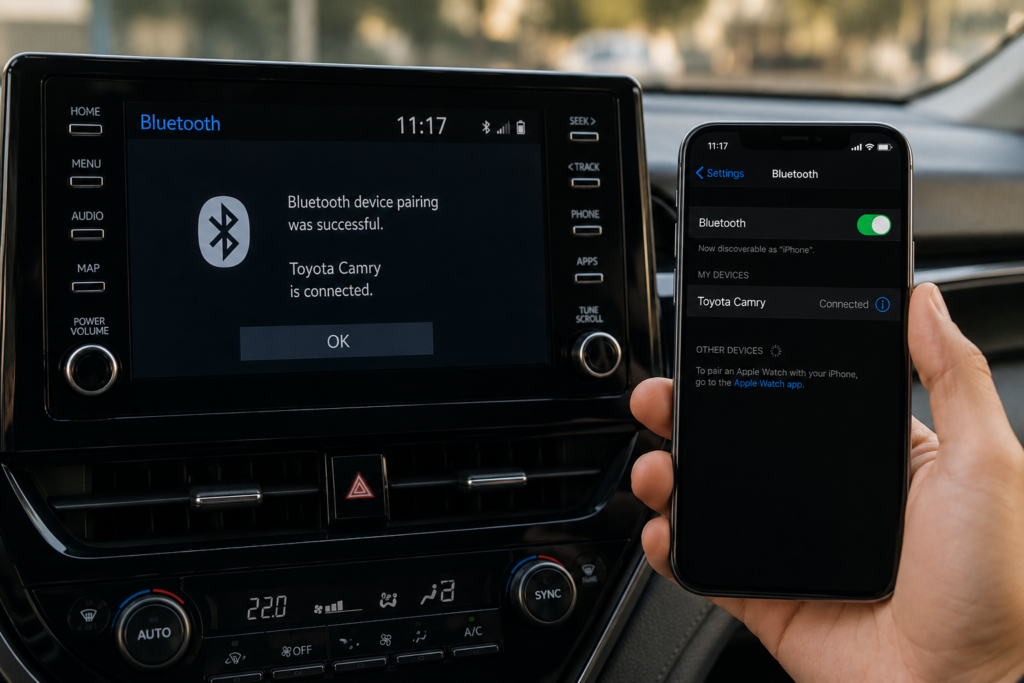
Android pairing works similarly, but connection stability can vary more between phone brands. Samsung, Google Pixel, and newer OnePlus devices usually connect faster than heavily customized Android systems.
Toyota Camry Bluetooth Pairing Step-by-Step
Toyota kept the pairing process fairly similar across most Camry generations. Once owners do it once, reconnecting another phone becomes much easier later.
Open the Setup or Menu Screen
Press the Setup or Menu button on the infotainment screen first. Older Camrys may place Bluetooth options under Phone Setup instead of general settings.
Select Bluetooth and Add Device
After opening Bluetooth settings, choose Add Device to make the car discoverable. Some Toyota systems automatically stop searching after about 30 seconds, which catches many people off guard.
Confirm the Pairing Code
The pairing code must match on both the phone and vehicle screen before the connection finishes. A lot of failed pairings happen because users press Cancel too quickly without checking the code carefully.
Why the Toyota Camry Bluetooth Is Not Connecting
Bluetooth problems are common in older Camrys and phones with outdated software. In many cases, the issue comes from saved device conflicts rather than damaged hardware.
Older Toyota systems may lose Bluetooth stability after major iOS or Android updates, so checking for infotainment software updates at the dealership is recommended.
Pairing Failed or Connection Rejected
Failed pairing usually happens because:
- Too many saved devices exist
- Bluetooth permissions are blocked
- Phone software is outdated
- The infotainment system froze temporarily
In many cases, restarting both the car and phone solves the problem.
Phone Connects, but Audio Does Not Work
Sometimes calls work normally while music refuses to play through the speakers.
This usually happens when:
- Media audio permission is disabled
- The wrong audio source is selected
- The phone connects only for calls
Older 2012 to 2014 systems commonly show this issue after phone software updates. Some drivers think the speakers failed when the problem is actually just the media audio setting.
Bluetooth Keeps Disconnecting While Driving
Random disconnects often happen because of battery optimization settings inside smartphones.
Some Android devices aggressively disable Bluetooth activity in the background to save battery power. On Android phones, go to Settings, then Battery, then find your Bluetooth or Phone app and disable battery optimization for it. On iPhone, make sure Background App Refresh is enabled for Phone and Contacts.
Read Guide: How to Fix Tacoma Wireless Charger Not Working?
How to Reset the Toyota Camry Bluetooth System
Resetting Bluetooth usually fixes freezing, failed pairing, or missing audio problems. Most Toyota systems allow owners to clear paired devices without dealership tools.
To fully reset Bluetooth on a 2018 to 2026 Toyota Camry, go to Setup, then General, then Delete Personal Data. This removes all paired devices, saved contacts, and call history. After resetting, restart the car and pair your phone again from scratch.
Restart Toyota Multimedia System
Restarting the infotainment system can refresh frozen Bluetooth connections.
Usually helps with:
- Audio lag
- Device detection issues
- Random disconnects
- Frozen pairing screens
Some newer Camrys reboot the multimedia system automatically after software updates.
Toyota Camry Bluetooth Features Explained
Toyota Bluetooth systems now support more than just phone calls. Newer Camry models include media streaming, contact syncing, voice controls, and smartphone integration features.
Feature support still depends heavily on model year and trim level.
| Feature | Older Camry | 2018 to 2026 Camry |
| Hands-free calls | Yes | Yes |
| Wireless music | Limited | Full support |
| Contact sync | Basic | Improved |
| Apple CarPlay | No | Yes |
| Android Auto | No | Yes |
Also Read: Do Toyota Camrys Have Apple CarPlay?
Apple CarPlay and Android Auto Support
Most 2020 to 2026 Toyota Camry models support Apple CarPlay and Android Auto, either wired or wirelessly, depending on trim. Older Camrys usually rely only on standard Bluetooth audio instead of full smartphone integration.
Common Bluetooth Mistakes Toyota Camry Owners Make
Most Bluetooth problems happen because of setup mistakes instead of hardware failure. Small menu differences between Camry generations confuse many drivers. A lot of people also pair the phone correctly but forget to select Bluetooth audio afterward.
Pairing the Wrong Toyota System
In parking lots, multiple Toyota Bluetooth systems may appear on the phone screen at the same time. To avoid this, always check that the Bluetooth name shown on your phone matches your exact car’s system name before confirming the pairing.
FAQs
Can a Toyota Camry connect to two phones at the same time?
Yes. Many newer Toyota Camry models allow dual-phone pairing for calls and media connections.
Does the Toyota Camry Bluetooth support Spotify music streaming?
Yes. Most 2012 to 2026 Camry models can stream Spotify and other music apps through Bluetooth audio.
Why does my Toyota Camry Bluetooth keep disconnecting after pairing?
This usually happens because of outdated phone software, saved device conflicts, or battery optimization settings blocking Bluetooth.
How do I reconnect Bluetooth after resetting my Toyota Camry system?
Delete the old paired profile from both the phone and car, then complete the pairing process again from the beginning.
Is Bluetooth available in every Toyota Camry model?
No. Some lower-trim older Camry models before 2007 did not include factory Bluetooth support.
Conclusion
Learning how to connect Bluetooth to Toyota Camry models becomes much easier once you understand which multimedia system your car uses. Most pairing problems come from old saved devices, permission issues, or outdated software, instead of hardware failure. Whether you drive a 2007 Camry or a newer 2026 model, keeping the system updated and clearing unused devices usually keeps Bluetooth working smoothly for calls, music, and smartphone features.